A thoughtful way to revisit family memories

Animate family photos with care.

Animate family photos by turning a still family portrait into a short AI-generated video. Choose a clear image, describe one gentle movement, and preview the result in the generator. Start with a copy of the photo so the original stays untouched.

Choose a starting point

What family photo animation ideas can I try?

When you animate family photos, start with the portrait that best fits the movement you have in mind. A simple pose and visible eyes give the model a clearer reference; choose an idea that matches the expression and mood already in the photograph.

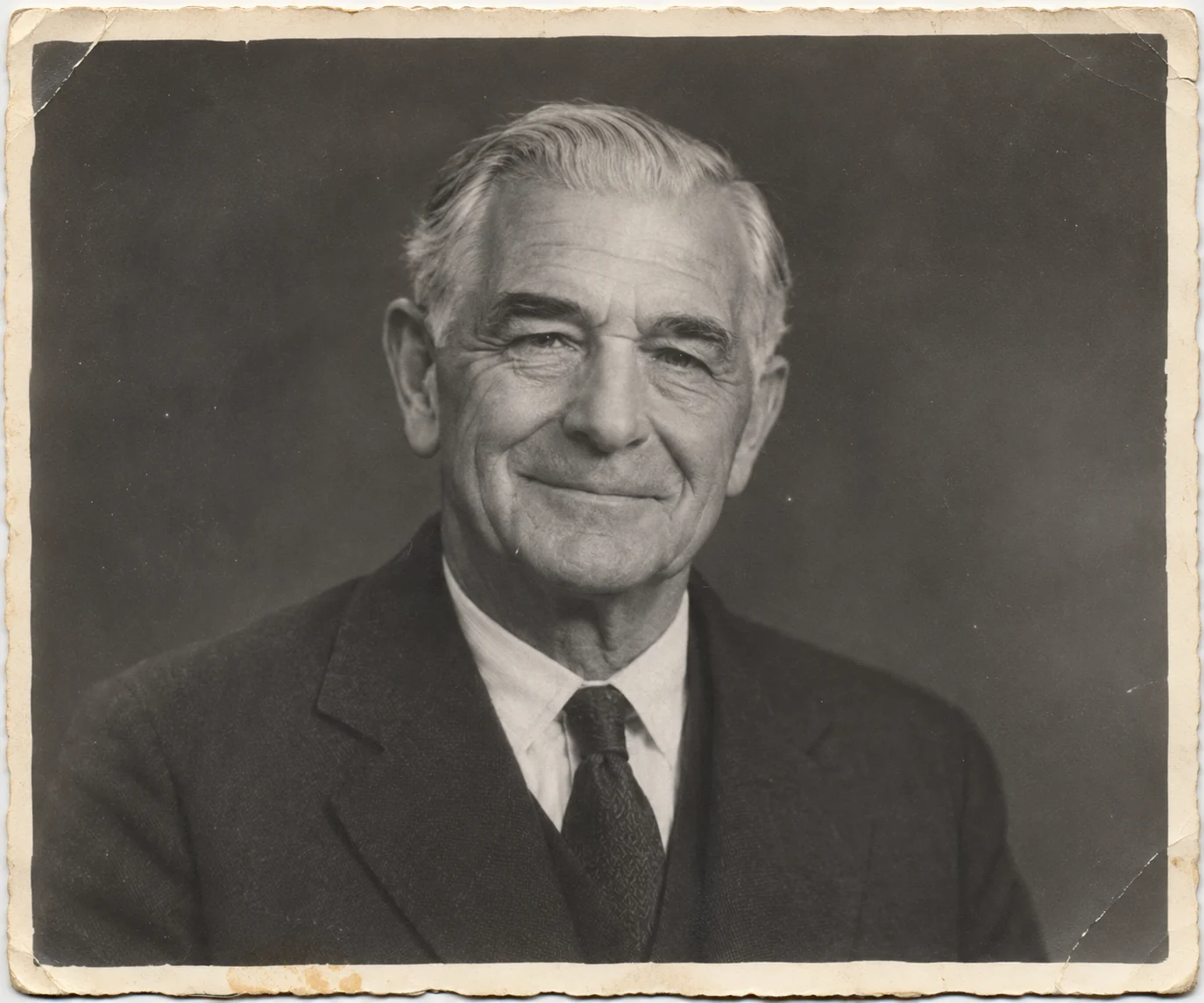
A fictional elderly man in a softly faded vintage studio portrait

A grandparent’s formal portrait

This is a simple way to animate family photos with a large, visible face as a clear reference. Try one gentle blink or a faint smile that suits the portrait’s quiet mood. A short prompt such as “soft smile, then a natural blink” keeps the action focused and easy to review.
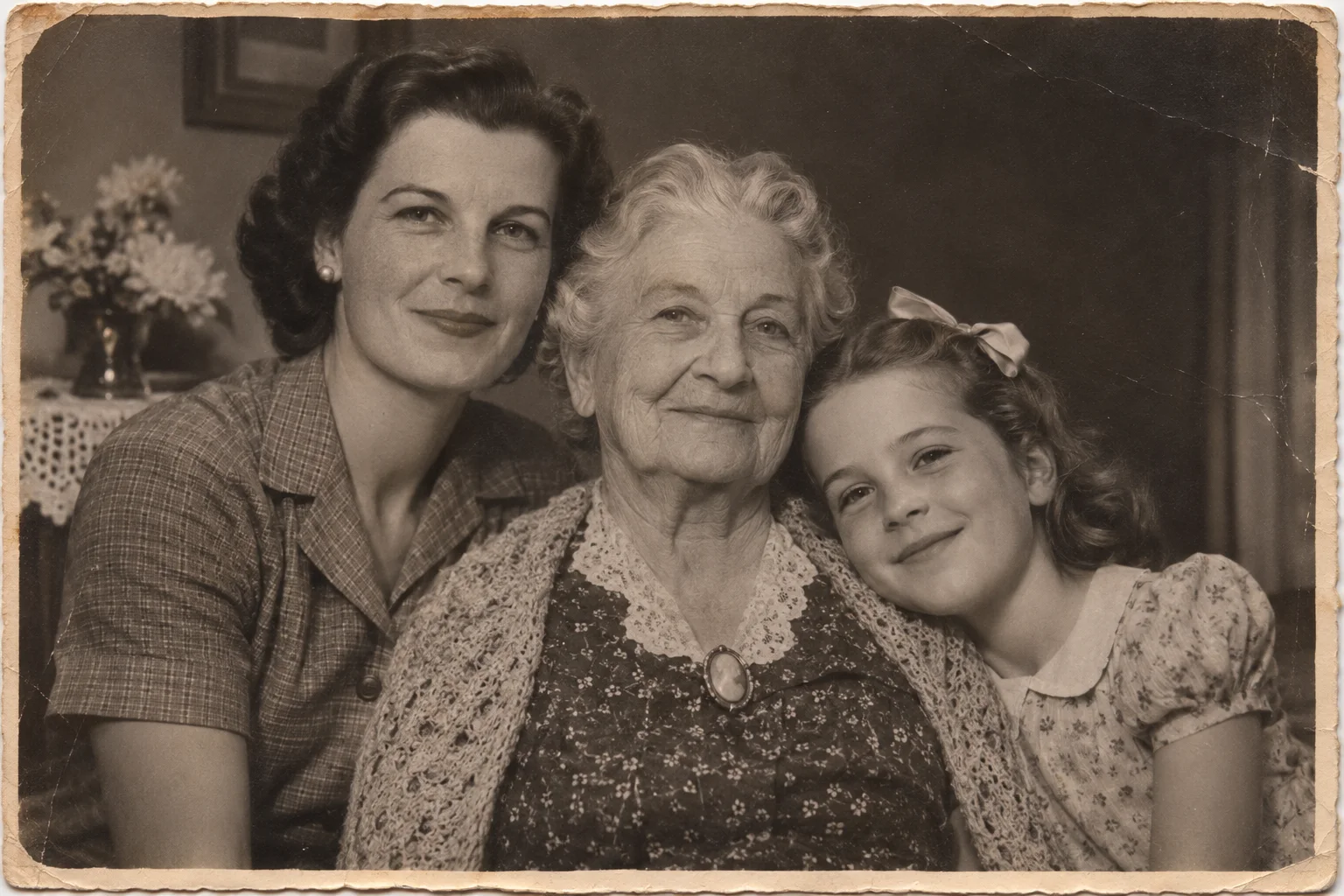
A fictional family portrait showing a grandmother, daughter, and granddaughter

Three generations in one frame

To animate family photos across generations, begin with a multi-generation portrait that holds several relationships in one frame. Motion can vary when faces are small or turned away, so consider a closer crop. If you want everyone included, ask for subtle movement and check each face in the finished preview.

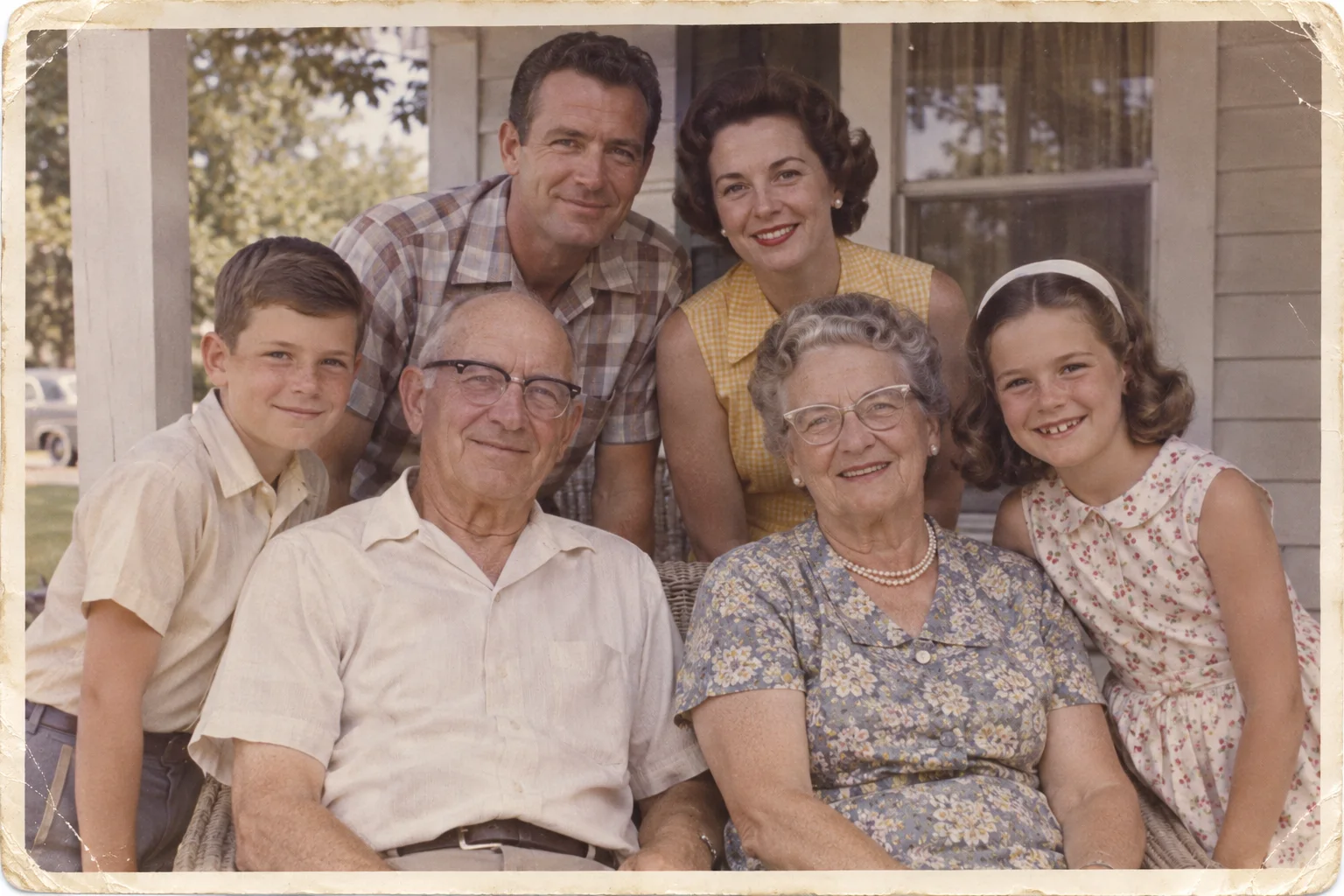
A fictional six-person family gathering in a faded 1960s color photograph

A large family gathering

Group photos can be harder to animate because faces may be small or partly hidden. Choose the clearest person as the focus. A useful first try is a blink or slight head movement for one person, rather than asking the whole group to move at once.

A considered four-step process

How do you animate a family photo?

The video is made in the generator: that is where you animate family photos. These illustrations follow the same fictional grandmother, daughter, and granddaughter from source photo to preview. The scan and optional edits prepare the image; they are not stages inside the animation tool.

  1. 01

    Choose the photograph

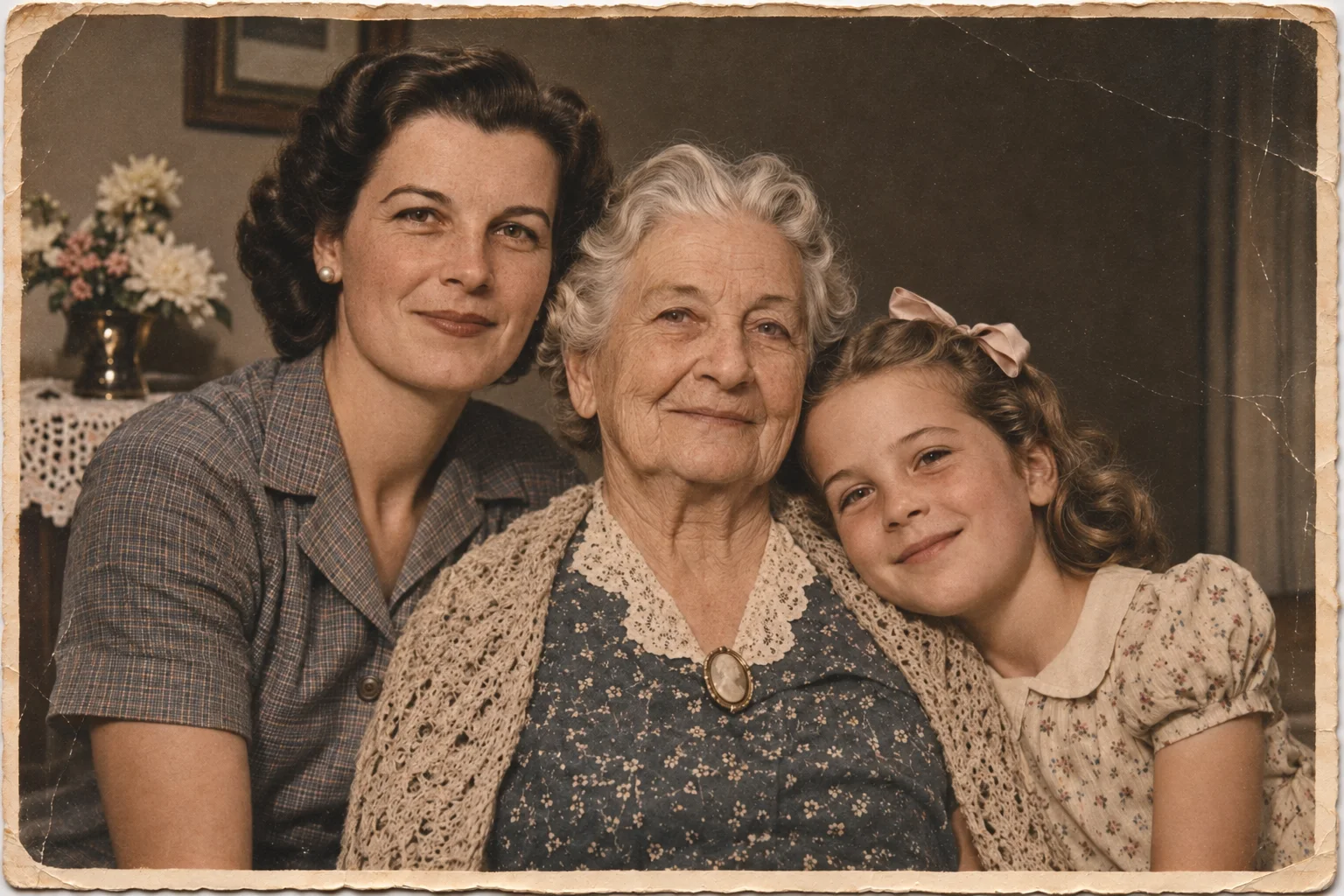
    Choose a focused image before you animate family photos, and keep the original print intact. Use a clean scan or digital copy for the upload. If the image is already on your phone or computer, use that file and avoid photographing a screen, which can add glare and patterns.

    The original fictional three-generation family portrait used in the workflow sequence
  2. 02

    Scan or photograph the print

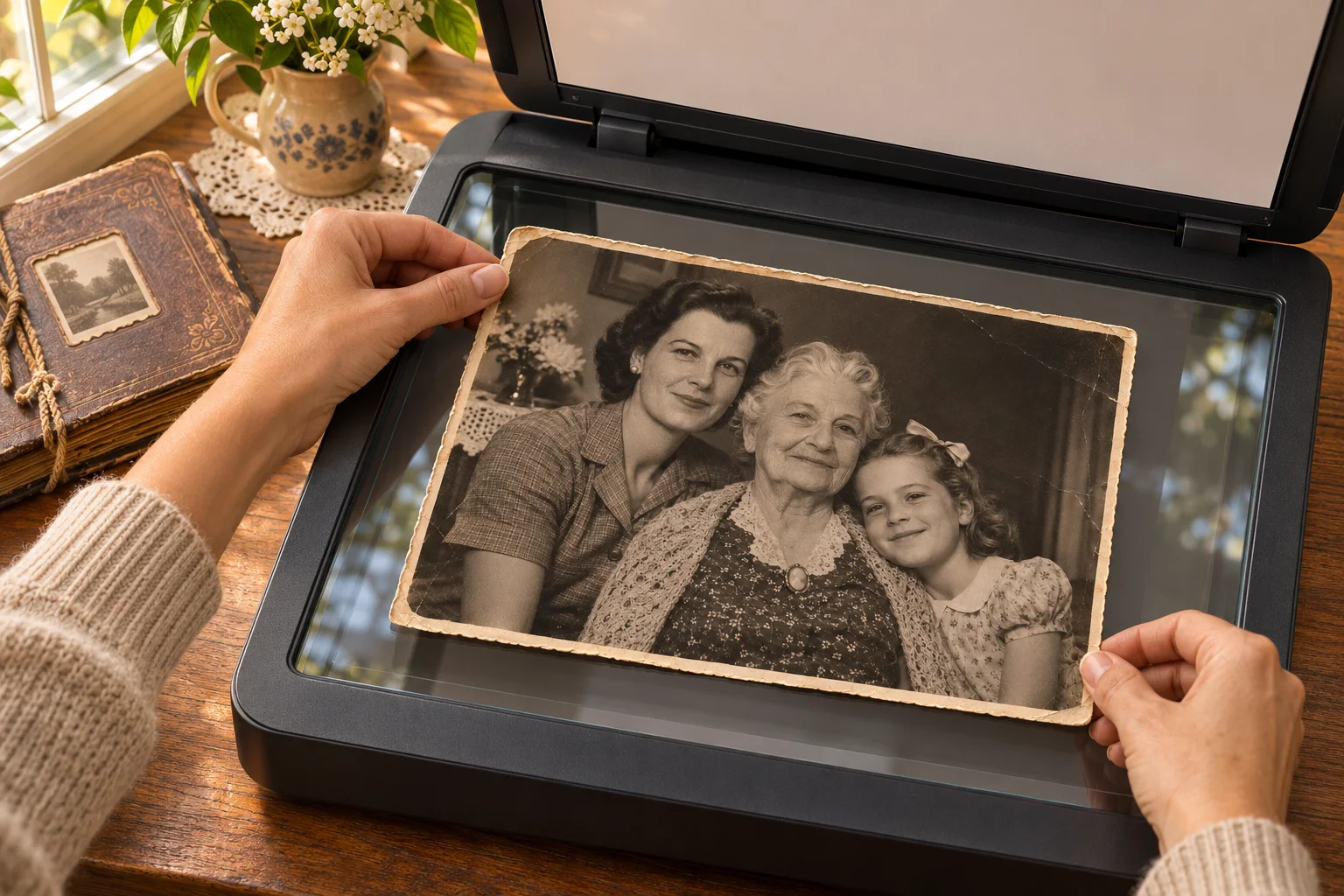
    Scan evenly or photograph in soft light. Keep the camera parallel to reduce glare and retain the full face in frame. Check the edges for reflections, fingers, or cropping, and save a separate copy before making edits.

    Hands placing the same fictional family portrait on a flatbed scanner
  3. 03

    Prepare the photo if needed

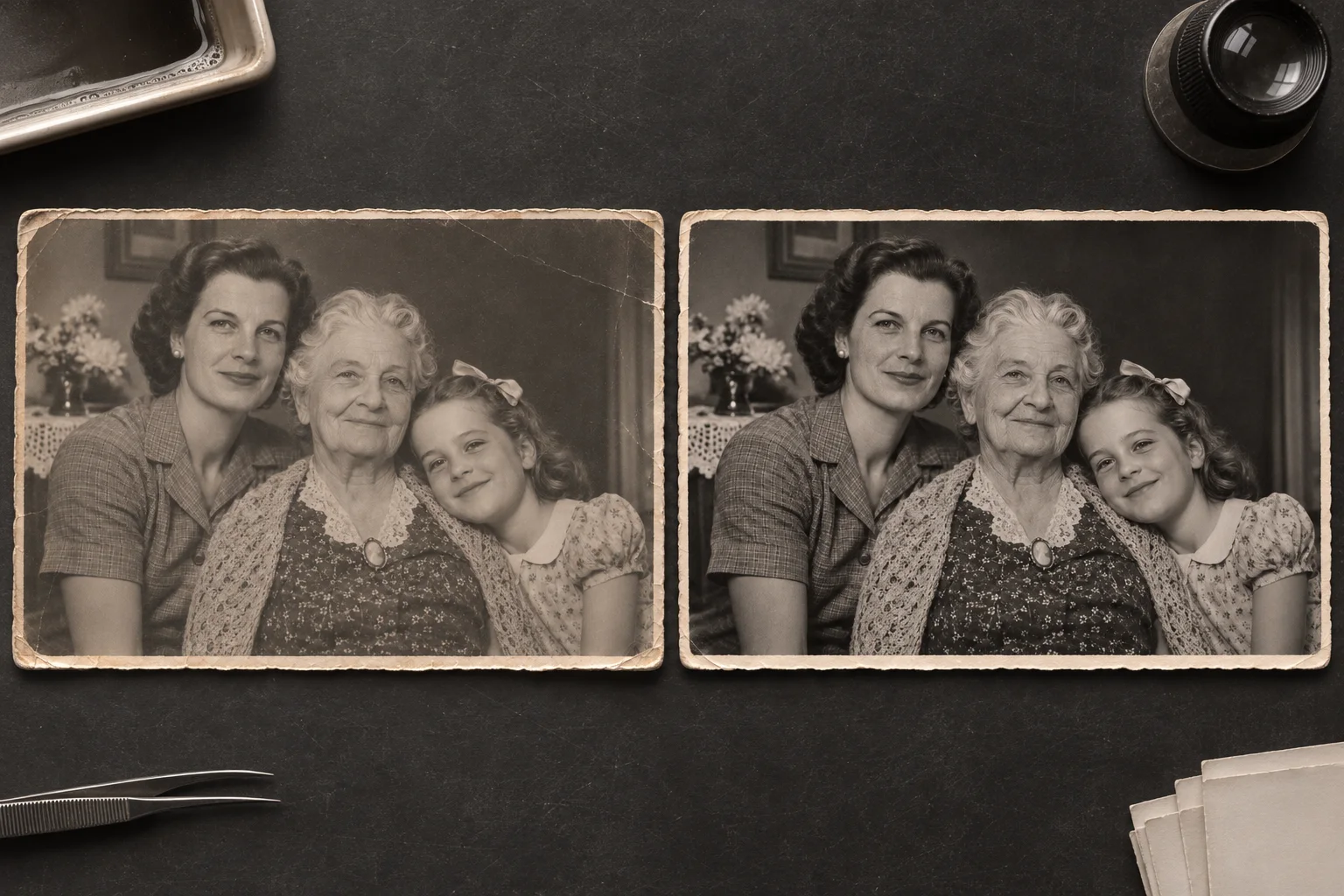
    Repair scratches or add color only if useful. Compare edits with the original; repaired details and color choices are interpretations. Skip this step when the source already looks clear, since extra processing can soften details or change a familiar face.

    A side-by-side restoration illustration of the same fictional family portrait
  4. 04

    Describe one gentle movement

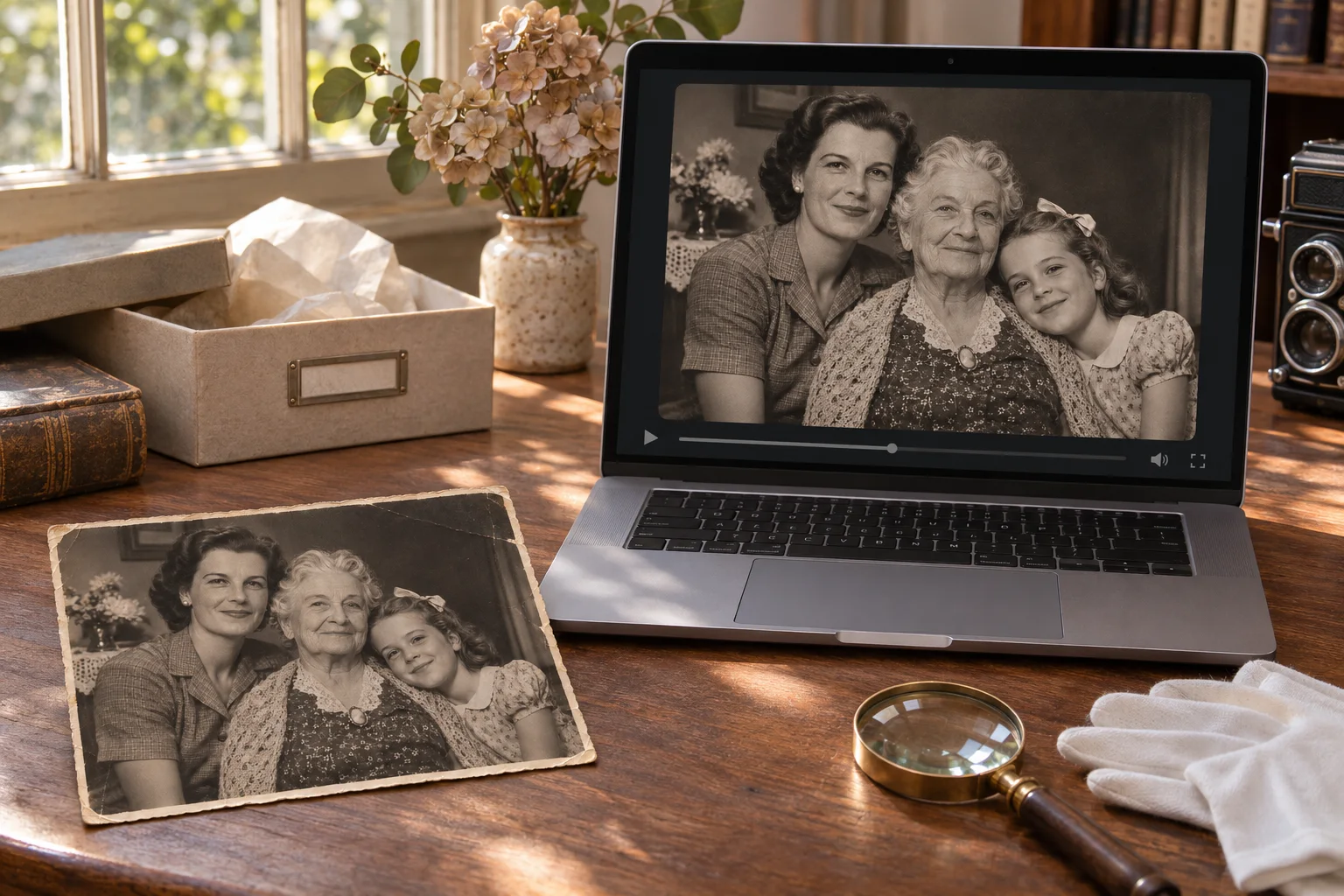
    Try a short prompt such as “a gentle smile and a natural blink.” Upload, submit, and review the result. Sign-in or credits may be required. Keep the wording focused on one action, then try a different prompt if the first motion feels too strong.

    The same fictional family portrait beside a laptop in a workflow illustration

The final image is an illustrative workflow scene, not a product screenshot or an actual generated video.

A fictional six-person family reunion portrait with faces visible at different sizes

Before you upload

How should I prepare a family photo?

The source need not be perfect, but the person should be recognizable. Before you animate family photos, check these details so it is easier to judge whether an unexpected result came from the photo, the prompt, or the model.

  • The face is visible, reasonably sharp, and not covered by an object or another person. Clear eyes help.
  • Eyes, nose, and mouth are large enough in the frame to be recognized. Avoid tiny distant faces.
  • Low light, blur, or damage does not hide the key facial details. Even lighting helps scans.
  • In a group image, you know which person you want to emphasize. Crop only a copy.

Results vary with image quality, pose, and prompt when you animate family photos. If you edited a damaged print, compare the restored copy with the original before continuing; keep whichever version looks most like the person you remember.

A clear expectation

What can an AI photo animation show?

When you animate family photos, AI creates new frames from a still image and prompt; it does not uncover hidden footage. A blink or slight turn may work, but results vary, so review the output as generated media. The system may change details around the mouth, eyes, or hair.

Do not present an animation as evidence of what a relative said or did. If you share it, explain that the motion is AI-created. The original is historical; the video is an interpretation. Consider showing both together so viewers can understand what changed.

A family memory

How should I handle family photos thoughtfully?

Use a photo you have permission to process and consider relatives’ wishes. Check the generator’s sharing options for your account and plan before uploading. Avoid adding names or other personal details to a prompt; the movement description usually needs only a simple action. Keep the original image unchanged and upload a separate copy. If you plan to share the result, let family members know it is AI-generated and confirm that the people shown are comfortable with how it will be used.

Answers before you begin

What else should I know about animating family photos?

Can I animate group photos?+

Yes, you can animate family photos with several people. Small or covered faces may be less consistent, so try cropping around one clear person. If you keep the whole group, ask for subtle motion and check every face in the preview before sharing.

Which old photos work best?+

To animate family photos successfully, choose a clear copy with a visible face. A scan or evenly lit phone photo can work. Keep the camera straight, avoid glare, and check that the face is not too small in the frame.

Restore or colorize first?+

Both are optional. Compare an edited copy with the original and upload the version you prefer. Restoration can help with scratches; color is a creative interpretation rather than recovered historical detail.

Does AI recreate real movement?+

No. The result is generated from a still image and prompt; it is not recovered footage. Treat facial movement as new media and label it clearly when sharing.

Where do I animate a photo?+

Use the video generator to animate family photos: upload a photo and enter a prompt. Sign-in or credits may be required. Review the account’s available options before starting a generation.

Your photo, your idea

Give a family portrait a little motion

Ready to animate family photos? Choose a clear portrait, describe one small movement, and review the video before sharing. Keep the original close by as you explore the result, and tell family members when the motion was created with AI.

Create an animation